
Help Center
How To Disabling a Business Location
Disabling a Business Location
If you need to disable a business location in Posnets, follow these steps:
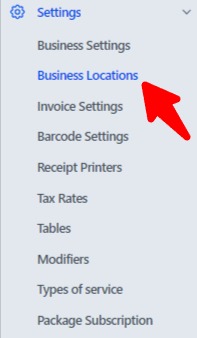
1. Navigate to Business Locations
- Go to Settings in the main menu.
- Select List Business Locations to view all existing business locations.
2. Disable a Business Location
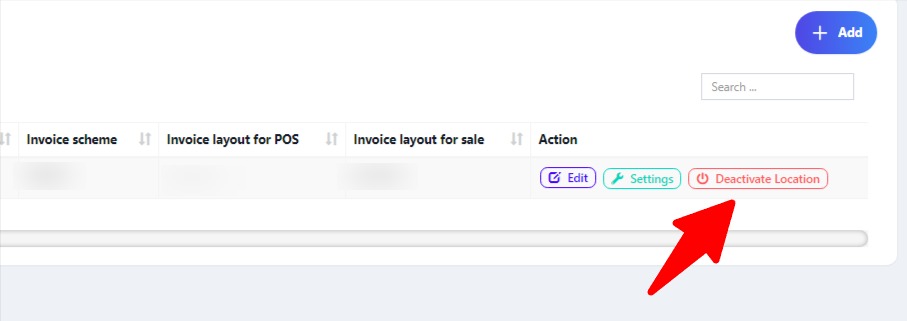
- Locate the business location you want to disable.
- Click on the Disable button next to that location.
Important Notes
- Reassign Users:
- Any users assigned to the disabled business location must be reassigned to another active (non-disabled) business location to ensure uninterrupted access.
- You can do this in the User Management section by editing the user's assigned location.
- At Least One Active Location:
- You must maintain at least one active business location.
- If all business locations are disabled, the application will encounter errors and may become non-functional.
Disabling a business location helps you manage inactive locations while ensuring the system remains operational and users are correctly assigned to active locations. For further assistance, refer to the User Management or Settings sections.